Small Office Network Setup: Internet, Wi-Fi and Cabling Checklist
Quick Answer: How to set up a reliable small-office network: business internet with backup, a proper firewall, Cat6 cabling, ceiling Wi-Fi access points and separate guest and device networks.
Quick answer: A reliable small-office network has five parts: a business internet line with a backup connection, a proper firewall/router instead of the ISP's default box, structured cabling to desks and access points, business Wi-Fi access points placed for coverage, and separate networks for staff, guests and devices such as printers and cameras. Get these right when you move in. Fixing cabling later costs much more than doing it once.
1. Internet: one main line, one backup
- Main line: fibre where available. Ask the provider for a business contract with a fixed public IP if you need remote access or a VPN, and a written repair time.
- Backup line: a second provider, or at least a 4G/5G router, so card payments, email and cloud apps keep working when the main line drops.
- Automatic failover: the firewall should switch to the backup line by itself, and switch back when the main line returns.
Count the cloud apps your team uses every day: Microsoft 365, accounting software, fiscal invoicing, video calls. If they all stop when one cable is cut, a backup line pays for itself quickly.
2. Firewall and router: don't rely on the ISP's box
The router supplied by the internet provider is built for homes. For an office, use a business firewall that gives you:
- automatic failover between two internet lines
- separate networks (VLANs) for staff, guests and devices
- VPN for remote staff, protected with MFA
- firmware updates you can manage and schedule
- logs, so you can see what happened when something breaks
3. Cabling: plan it before the furniture arrives
- Run Cat6 cable to every desk, printer, access point and camera position, with a spare point or two per room.
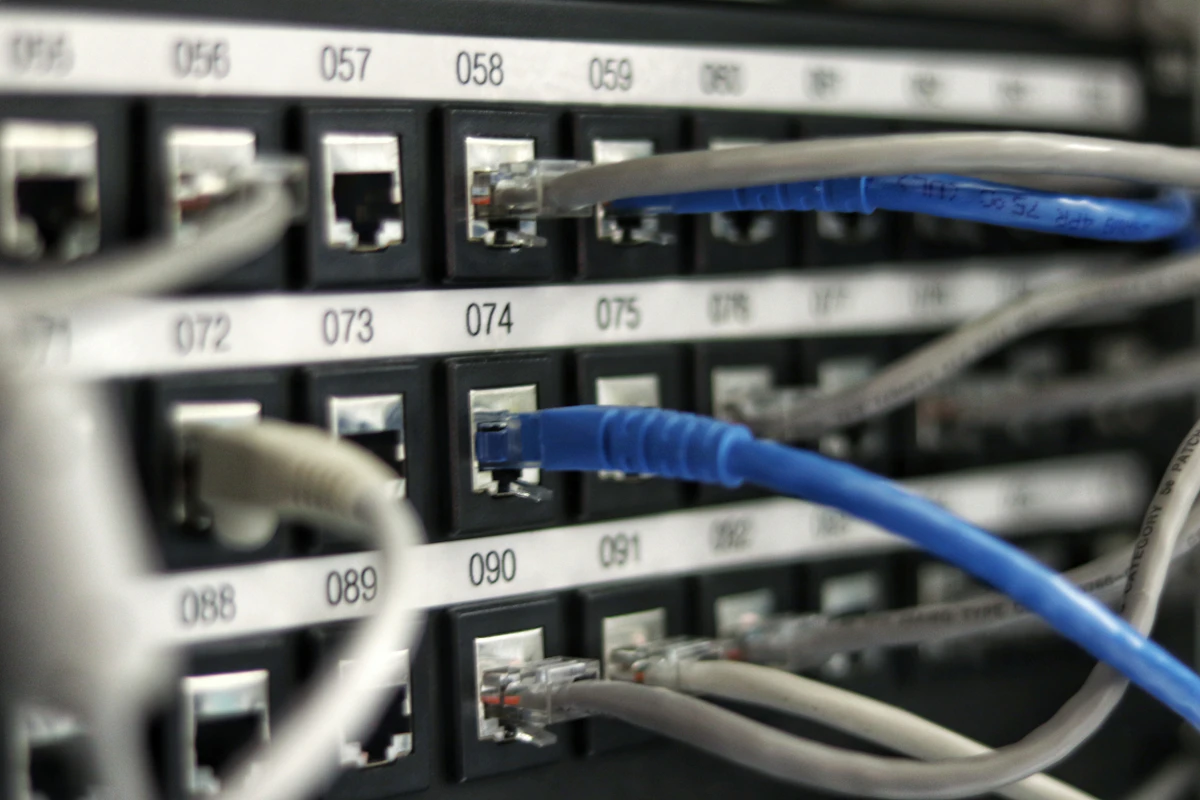
- Bring all cables back to one small network cabinet with a patch panel and a switch.
- Label both ends of every cable and keep a simple floor plan.
- Use a PoE switch (Power over Ethernet) so access points and cameras get power over the network cable: fewer power sockets, cleaner installation.
- Put the cabinet on a UPS so the network survives short power cuts. See keeping the office running during power and internet outages.
4. Wi-Fi: access points, not one strong router
One powerful router in a corner rarely covers a whole office. Use ceiling-mounted access points:
- roughly one per 15–25 people or per large room, adjusted for walls and layout
- all managed from one place, with one network name so laptops roam smoothly
- Wi-Fi 6 or newer, using WPA3 where your devices support it
- mounted high and central, not hidden in a cabinet
5. Separate networks
| Network | Who uses it | Rule |
|---|---|---|
| Staff | Company laptops and phones | Full access to company systems |
| Guest | Visitors, personal phones | Internet only, no access to office devices |
| Devices | Printers, cameras, TVs, smart devices | Only what each device needs |
This stops a visitor's infected phone, or a cheap camera with old firmware, from reaching your file server or accounting PC.
6. Document everything
At the end you should have: the internet contracts and support numbers, the admin passwords in the company's name and stored in a password manager, the cable floor plan, and a list of every network device with its warranty. If your IT person leaves, the next one should not have to start from zero.
A move-in checklist
- Order the internet line 4–6 weeks before the move-in date
- Choose a backup connection from a second provider
- Cabling plan agreed before walls and furniture are finished
- Network cabinet with patch panel, PoE switch and UPS
- Business firewall with failover and VLANs
- Ceiling access points with one managed Wi-Fi network
- Separate guest and device networks
- Passwords and documentation handed over in the company's name
Frequently asked questions
How much internet speed does a small office need?
It depends less on the number of people than on what they do. Video calls and large cloud file transfers need the most. A reliable fibre line with a backup is more important than the highest advertised speed.
Do I need a server in the office?
Most small offices no longer do. Email, files and many business apps run well in the cloud, which removes the risk of a single box failing. A local server still makes sense for some specialised software.
Can I use the router from the internet provider?
It works for a home, but an office benefits from a business firewall with failover, separate networks, VPN and managed updates.
Related reading: Microsoft 365 secure setup checklist · How to choose an IT company in Tirana · IT setup for remote workers in Tirana
Moving into a new office? CyberNet Albania plans and installs cabling, firewalls, Wi-Fi and backup internet for businesses in Tirana. See our network services, managed IT or contact us.
Questions about CyberNet Albania
What does CyberNet Albania provide for businesses?
CyberNet Albania provides managed IT support, cybersecurity, backup and recovery, plus network and cloud projects for businesses in Tirana and across Albania, in English and Albanian. Coverage, response targets and on-site visits are agreed in your service agreement.
How does CyberNet Albania protect a business from ransomware and data loss?
We combine endpoint protection (EDR), email filtering, regular patching and 3-2-1 backups with an off-site copy. Restores are tested periodically, so you know in advance how long recovery takes.
How much does managed IT support from CyberNet Albania cost?
Published plans start at €319 per month (Basic), €519 (Professional) and €1,199 (Enterprise). The final price depends on users, devices and services, and is confirmed in a written proposal.
Share this article
Help your network stay informed on cybersecurity and IT management.


